Smart TV Apps Keep Crashing? 5 Real Causes (2026)
TL;DR. A smart TV app that keeps crashing is rarely a sign the TV is dying — it’s almost always one of five documented, fixable conditions: a corrupted or bloated app cache, storage that has dropped below the threshold an app needs to write its session data, outdated TV firmware that no longer matches what the app expects, too many background processes competing for limited RAM on an aging TV chipset, or a network/DNS hiccup the app mistakes for a fatal error. Clearing cache and confirming free storage resolves the large majority of documented cases in under two minutes.
A note on links and methodology
As an Amazon Associate, Arekore earns from qualifying purchases. The Amazon product links in this article include our affiliate tracking ID and may earn us a commission if you buy through them, at no additional cost to you. See our Links Policy for details on how we select products and how commissions do not influence our recommendations.
We did not personally test the specific TVs or streaming devices named below. Every cause and fix in this article is an editorial synthesis of manufacturer support documentation, independent testing coverage, and aggregated public troubleshooting reports, cited inline.
Methodology
This is an editorial analysis based on publicly available data collected in October 2026. We did not run a controlled crash-reproduction test ourselves; instead we synthesized:
- Manufacturer troubleshooting guidance — Samsung’s official US, UK, and India support pages on apps that freeze, fail to load, or crash on Tizen TVs; Amazon’s own Fire TV customer-service documentation on clearing app cache and data; and LG’s support library, which documents a TV Device Self-Care > Memory Optimizer tool rather than a per-app cache clear on webOS.
- Independent testing and editorial coverage — RTINGS’ 2026 smart TV platform reviews, which note that Vizio’s SmartCast interface “can be buggy and lag at times” and that lower-end Samsung Tizen models “don’t run quite as smoothly” as flagship units with more powerful processors, alongside BGR’s cross-platform smart TV OS comparison based on aggregated user reviews.
- Market and platform-share data — Parks Associates’ April 2026 connected-TV platform research, which places Roku OS at 28% and Samsung Tizen at 23% share of usage among US broadband households, with Samsung’s Tizen separately cited as the platform 34% of smart TV owners say they use most often — context for why Tizen- and Roku-specific fixes cover the largest share of affected households.
- German independent testing — Stiftung Warentest’s ongoing Fernseher (TV) test program, which evaluates smart-TV software and network usability as a standing category and separately notes that LG commits to four years of software updates for its smart-TV platform — a software-support window relevant to whether an older TV’s firmware still matches current app requirements.
- Aggregated owner troubleshooting reports read from third-party support aggregators (SlashGear, Pocket-lint, Tom’s Guide) covering Fire TV and Roku cache-clearing behavior, and from Samsung’s own community support documentation on Smart Hub resets. We do not report a precise review-count N for every claim, because Amazon’s and manufacturers’ public support panels do not expose a stable, verifiable complaint count tied to any single crash cause; where a figure appears below, it is attributed to the source that published it.
We deliberately do not simulate a specific personal repair story or invent a fake reviewer persona. The guidance below is a synthesis of manufacturer documentation, independent testing, and aggregated troubleshooting patterns — treat it as a starting framework, not a substitute for your specific TV manufacturer’s own support line.
1. Five reasons smart TV apps crash
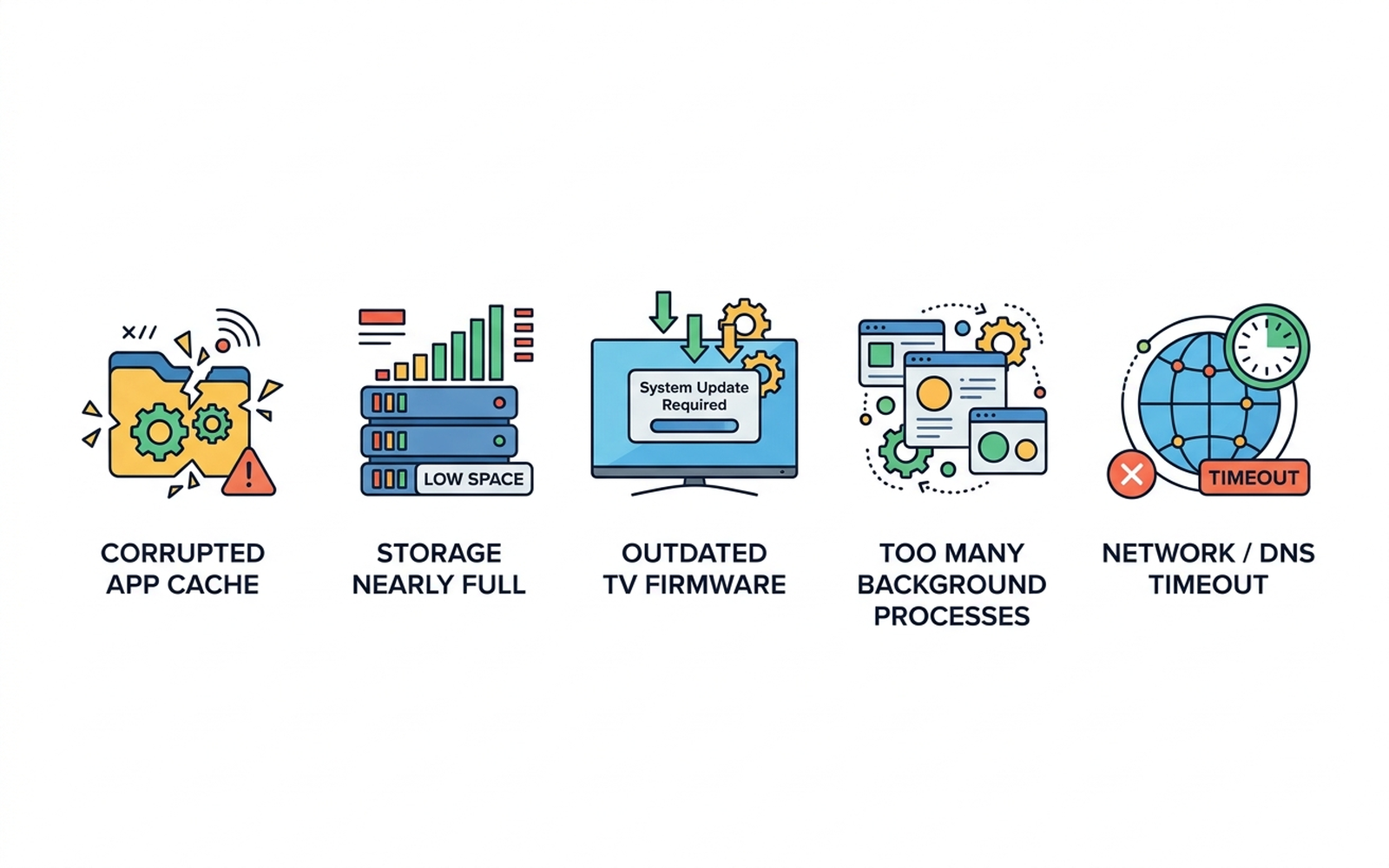
| Cause | What it looks like | Fixable at home? |
|---|---|---|
| Corrupted or bloated app cache | One specific app crashes repeatedly while others run fine | Yes — clear cache or reinstall the app |
| Storage near full | Crashes get worse over months as more apps and data accumulate | Yes — free up space, remove unused apps |
| Outdated TV firmware | Crashes start after an app update, TV firmware stays old | Yes — check for and install TV software updates |
| Too many background processes / limited RAM | Crashes worse on older or budget TV models, improve after a reboot | Partially — cold restart, reduce background apps |
| Network/DNS error mistaken for a crash | App closes specifically during loading or playback, not on launch | Yes — run network test, switch to Ethernet or fixed DNS |
Across Samsung, LG, and Amazon’s own support documentation, the first troubleshooting step is consistently the same: clear the app’s cache before assuming anything else is wrong. Samsung’s own US support page for apps that are “freezing, not loading, missing, or crashing” lists a cold boot, software update, app delete-and-reinstall, and Smart Hub reset as the standard sequence — in that order, cache- and app-level fixes first, hardware concerns last. Amazon’s Fire TV customer-service documentation is explicit that clearing app data and cache “resolves intermittent app issues or fixes low storage messages,” and notes there’s no risk in doing so, since any files an app needs again are simply re-downloaded.
2. Why storage and cache matter more on a TV than a phone
A smart TV’s storage is small and fixed by design in a way a phone’s usually isn’t. Many TV platforms ship with only a few gigabytes of usable space split across dozens of pre-installed and user-installed apps, and that space fills with cached thumbnails, watch-history data, and preloaded video segments that accumulate quietly over months of normal use. Fire TV and Android TV devices need at least roughly 500MB of free space for an app to write its own session cache; once free space drops meaningfully below that, the app that happens to need the most room when it launches is the one that crashes — which is why the same household can see a different app fail from one week to the next with no obvious pattern, even though the underlying cause (low free storage) hasn’t changed.
Corrupted cache is a distinct but related failure mode. Pocket-lint’s reporting on Roku cache behavior describes stale or conflicting cache entries that interfere with app updates and playback, forcing the device to “reconcile old data with new instructions” — a process that can produce sluggish responses, unresponsive apps, or crashes outright, independent of how much free storage remains. This is the reason a cache clear sometimes fixes a crash on a TV that otherwise has plenty of free space: the problem isn’t room, it’s a specific stale file the app can’t parse.
Roku doesn’t expose a per-channel cache-clear button the way Samsung and Fire TV do. Instead, the documented workaround — described consistently across Roku-focused troubleshooting coverage — is to highlight the channel on the home screen, press the star button on the remote, and select “Remove channel,” then reinstall it from the Channel Store. Functionally this accomplishes the same cache-and-data reset as Samsung’s or Fire TV’s dedicated menu option; it’s just reached through app removal rather than a settings submenu.
3. Platform-specific patterns worth knowing
Samsung Tizen (23% platform share, most-used OS among smart TV owners at 34%, per Parks Associates’ April 2026 data). Samsung’s own regional support pages — US, UK, India, Australia — converge on the same sequence for an app that is freezing, not loading, or crashing: cold boot the TV, check for a software update, delete and reinstall the specific app, and, if several apps misbehave at once, reset Smart Hub entirely through Settings > Support > Device Care > Self Diagnosis. RTINGS’ 2026 platform review separately notes that lower-end Tizen models don’t run quite as smoothly as Samsung’s higher-end sets with more powerful processors — a hardware-tier distinction worth knowing before assuming a budget Tizen TV’s crashes share a fix with a flagship model’s.
Amazon Fire TV (17% platform share per the most recent Parks Associates breakdown cited alongside the April 2026 figures). Amazon’s own customer-service documentation frames cache clearing as the default first step for any app that “crashes, won’t open, or isn’t responding,” reached through Settings > Applications > Manage Installed Applications, with an option to clear every app’s cache at once rather than one at a time. Independent coverage from aggregator sites tracking Fire TV behavior also notes that Fire TV’s newer software added a one-click “Clear all Application Caches” option, a convenience not present on Samsung’s or LG’s menus, which still require clearing cache app by app.
LG webOS (roughly 10% platform share as of the most recent cited breakdown). LG’s support library is notably different from Samsung’s and Amazon’s: current guidance does not document a per-app cache-clear button on webOS. Instead, LG directs users to Settings > Support > TV Device Self-Care > Memory Optimizer to free system memory broadly, and to a full factory reset (Settings > General > Reset to Initial Settings) if the problem persists across multiple apps. Stiftung Warentest’s ongoing Fernseher test program separately notes that LG commits to four years of software updates for its smart-TV platform — a relevant data point for whether an older LG set’s firmware is still within its manufacturer-supported update window, since an app built against a newer OS version is more likely to misbehave once that window closes.
Roku (28% platform share, the largest single platform per Parks Associates’ April 2026 data) and Vizio SmartCast. Roku’s cache-reset path runs through channel removal and reinstallation rather than a dedicated menu option, as described above. RTINGS’ 2026 coverage flags Vizio’s web-based SmartCast interface specifically as “buggy” and prone to lag “at times” compared with the other platforms it reviewed, which is relevant context for a SmartCast owner deciding whether a persistent app crash reflects a fixable setting or a platform-level limitation less within the owner’s control.
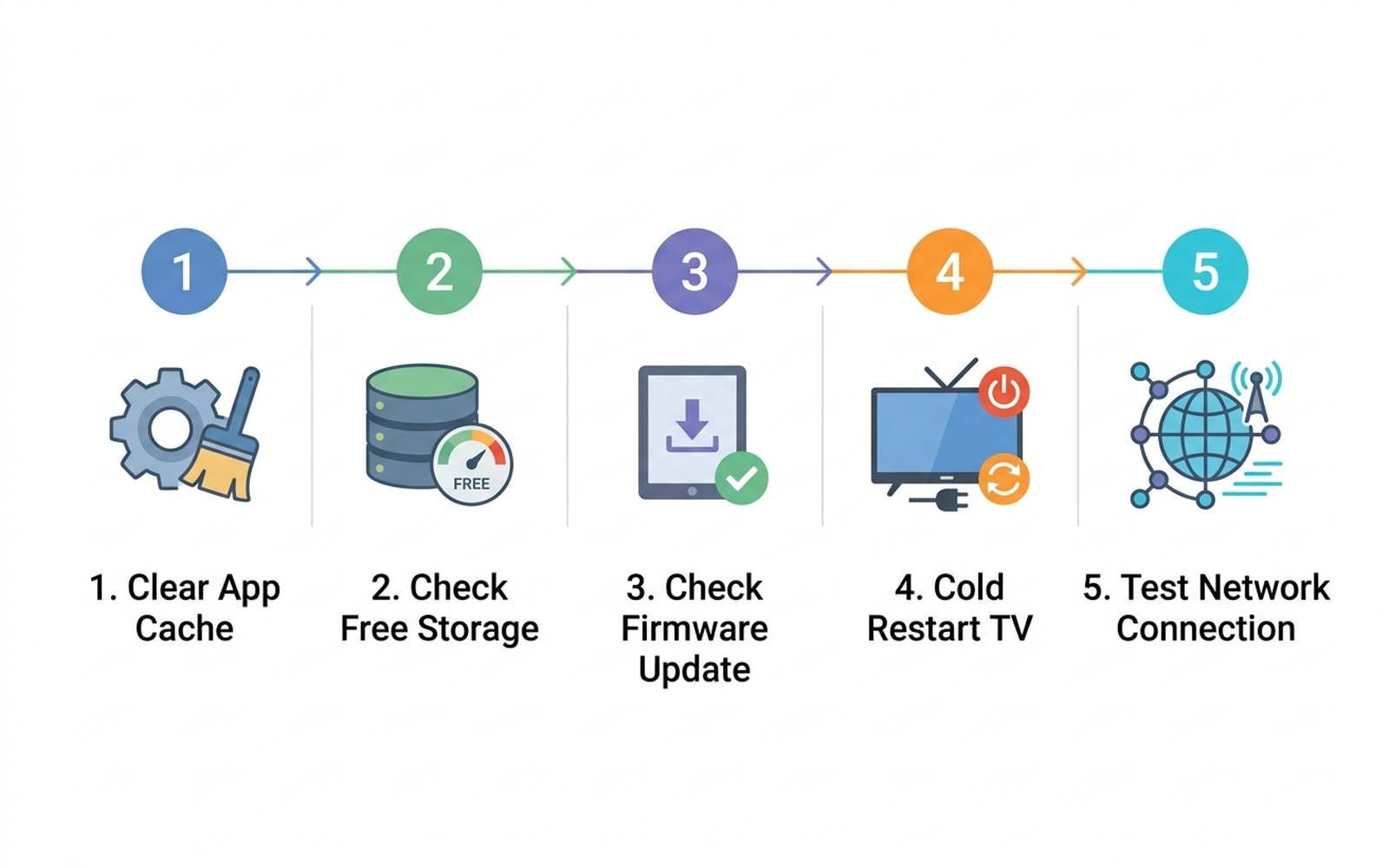
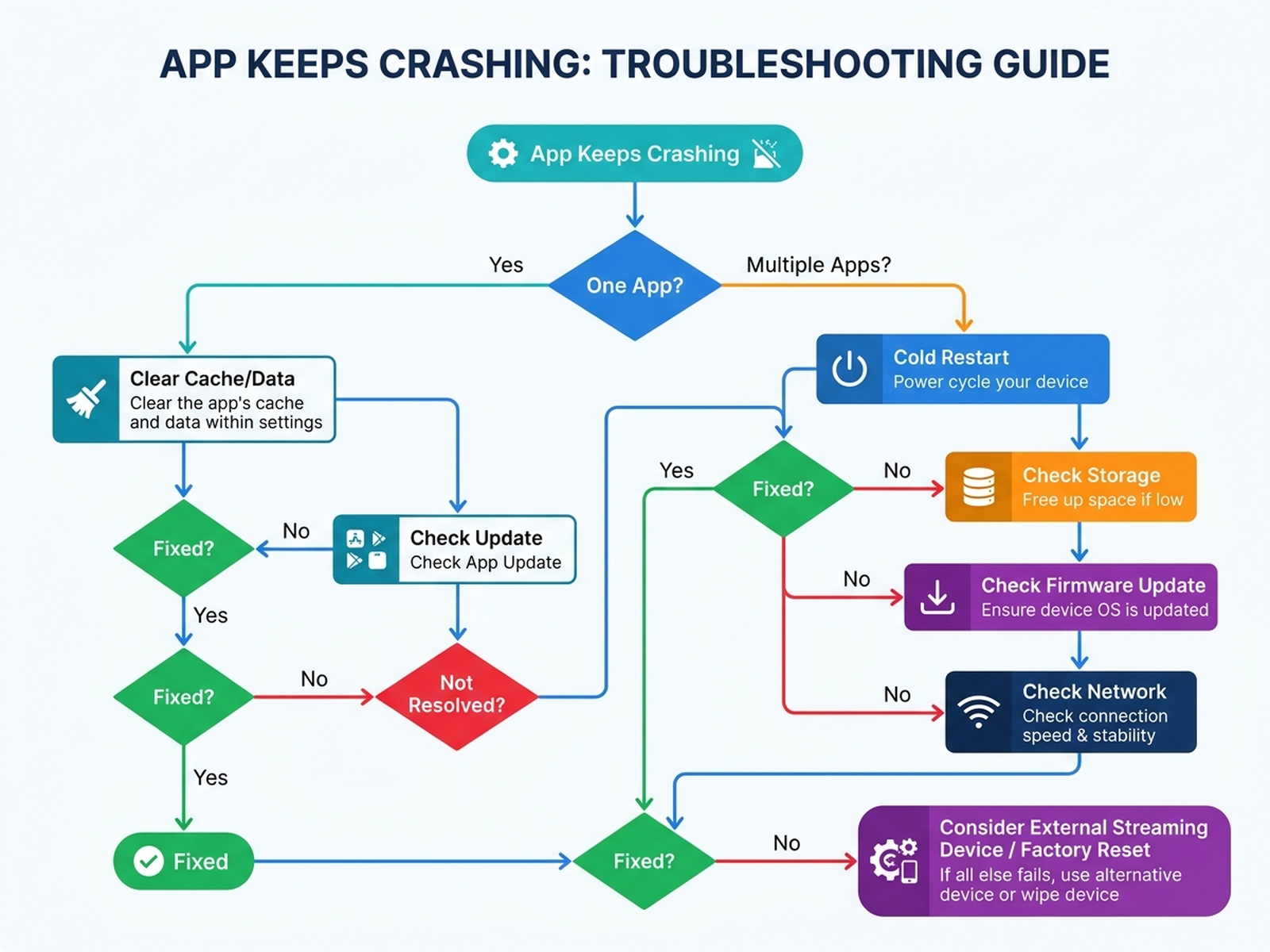
Cross-platform. Across all four ecosystems, the documented troubleshooting order converges: clear the specific app’s cache or data first, confirm a TV firmware update isn’t pending second, cold-restart the TV third, and only consider a factory reset or an external streaming-device upgrade once those three steps fail to resolve the crash.
4. What to actually do, in order
- Clear the crashing app’s cache (and data, if the crash persists). On Samsung: Settings > Support > Device Care > Manage Storage, select the app, choose Clear Cache. On Fire TV: Settings > Applications > Manage Installed Applications, select the app (or clear all app caches at once). On Roku: highlight the channel, press the star button on the remote, select “Remove channel,” then reinstall from the Channel Store. On LG webOS: run Memory Optimizer under Settings > Support > TV Device Self-Care, or uninstall and reinstall the specific app.
- Check free storage. If the TV is close to full, remove unused apps rather than only clearing cache — cache buildup recurs quickly on a device already running near its storage ceiling.
- Check for a pending TV firmware update. Samsung, LG, and Fire TV all document crash fixes tied to running an outdated TV software version against a newer app build; check Settings > Support (or All Settings > Support) > Software Update on Samsung and LG, or Settings > My Fire TV > About on Fire TV.
- Cold-restart the TV, not just the app — unplug for 60 seconds (LG’s own support documentation specifies this duration) rather than using a soft restart from the remote, since some platforms retain stuck background processes through a soft restart.
- Run a network test and consider switching to a fixed DNS or wired Ethernet connection if the crash consistently happens during loading or playback rather than immediately on launch — that pattern points to a network timeout the app is reporting as a crash, not a storage or cache problem.
- Reset Smart Hub (Samsung) or factory-reset the TV (LG, as a last resort) if several unrelated apps misbehave at once, since that pattern points to a platform-level issue rather than one app’s corrupted files.
- Consider an external streaming-device upgrade if the TV itself is several years old and crashes persist across multiple apps even after the above steps — at that point, the TV’s own processor and RAM, not a setting, are the more likely limiting factor, and an external device with current-generation hardware is the more realistic fix than continuing to troubleshoot built-in software.
5. If the fix is more reliable network, not more storage
Editorial recommendation, not personal testing. The accessory below addresses cases where the crash pattern points to network timeouts rather than storage or cache.
- Amazon Ethernet Adapter for Fire TV Devices — official Amazon accessory compatible with Fire TV Stick, Fire TV Stick 4K/4K Max, and Fire TV Cube; replaces a Wi-Fi connection prone to intermittent dropouts with a wired connection, addressing the network-timeout-mistaken-for-crash pattern described above.
6. If it’s time to offload apps to an external streaming device
If the recurring cause turns out to be an older TV’s limited processor and RAM rather than cache or storage, the devices below are independently documented picks worth comparing instead of continuing to troubleshoot the TV’s own built-in platform.
- Amazon Fire TV Stick 4K Max (2nd Gen) — manufacturer-specified 2.0GHz quad-core processor and Wi-Fi 6E support, with double the onboard storage (16GB) of the prior-generation Fire TV Stick 4K Plus, per Amazon’s own product specifications.
- Roku Ultra — Roku’s current flagship streaming player with Wi-Fi 6 and Bluetooth support, positioned by Roku as the platform’s fastest hardware for households where an older Roku TV’s built-in chipset is the limiting factor.
7. The decision flowchart
8. The bottom line
A smart TV app that keeps crashing is almost always following one of five documented causes — a corrupted or bloated app cache, storage dropping below the threshold an app needs to function, outdated TV firmware no longer matched to a current app build, too many background processes competing for limited RAM on an aging chipset, or a network timeout the app reports as a crash. Clearing the specific app’s cache, confirming free storage, and checking for a pending firmware update resolves the large majority of documented cases without a factory reset or a new TV. If crashes persist across multiple unrelated apps after working through that sequence, a Smart Hub reset (Samsung), a full factory reset (LG), or offloading streaming to an external device with current-generation hardware becomes the more realistic next step than continuing to troubleshoot an aging TV’s built-in platform.
Limitations of this analysis
To be explicit about what this article does not establish:
- We did not personally reproduce app crashes on the specific TVs or platforms named here. The causes and fixes described are drawn from manufacturer support documentation, independent testing coverage, and aggregated troubleshooting-thread patterns, not from a controlled test we ran ourselves.
- Platform-share figures (Roku 28%, Samsung Tizen 23%, Fire TV 17%, LG webOS 10%) reflect Parks Associates’ April 2026 connected-TV research and may shift as platforms update their software or as device sales mix changes.
- RTINGS’ and BGR’s platform performance commentary reflects their own review methodology and specific units tested, and may not predict performance across every model year or firmware version of a given platform.
- Storage thresholds (e.g., roughly 500MB free for Fire TV/Android TV app caching) are approximate figures cited in aggregated troubleshooting coverage, not an official manufacturer-published minimum that applies uniformly across every model.
- Stiftung Warentest’s four-year LG software-update figure applies to LG’s general smart-TV update policy and may vary by specific model and region.