How to Prevent OLED TV Burn-In: What Actually Works

TL;DR
OLED burn-in has not been solved by newer, brighter panels — RTINGS’ ongoing longevity test found 2020–2023 OLED TVs develop burn-in at roughly the same rate as a 2017 model under identical stress conditions, despite being up to twice as bright. The good news is that burn-in only shows up under genuinely extreme usage: the same news channel for 8+ hours a day, year after year, or the same game HUD running for months without a break. For the typical household watching a mix of streaming, movies, and live TV, the built-in mitigation features — pixel shift, logo dimming, and the automatic pixel-refresh cycle that runs when you power off with the remote — handle the risk without you doing anything extra. A handful of habits close the remaining gap for heavier or more static use.
Methodology
This analysis synthesizes RTINGS.com’s published multi-year, 100-TV accelerated longevity and burn-in test data, Tom’s Hardware’s reporting on the 10,000-hour comparison between 2017 and 2023 OLED panels, manufacturer-published care and mitigation documentation from LG and Samsung, Tom’s Guide’s settings-focused prevention reporting, and current US OLED and smart TV market-share data. We did not run a controlled multi-year burn-in test ourselves; this is an editorial synthesis of independent lab testing, manufacturer guidance, and market data, not first-hand longevity testing.
What a 10,000-Hour Test Actually Shows
RTINGS runs a 100-TV accelerated longevity test, with more than 18,000 cumulative test hours logged so far, including static-content stress scenarios modeled on news-channel tickers, sports scoreboards, and video games — the realistic high-risk cases, not an artificial worst case. One of the most cited comparisons from that program pits a 2017 OLED panel against 2020–2023 models under the same 10,000-hour simulated news-channel usage.
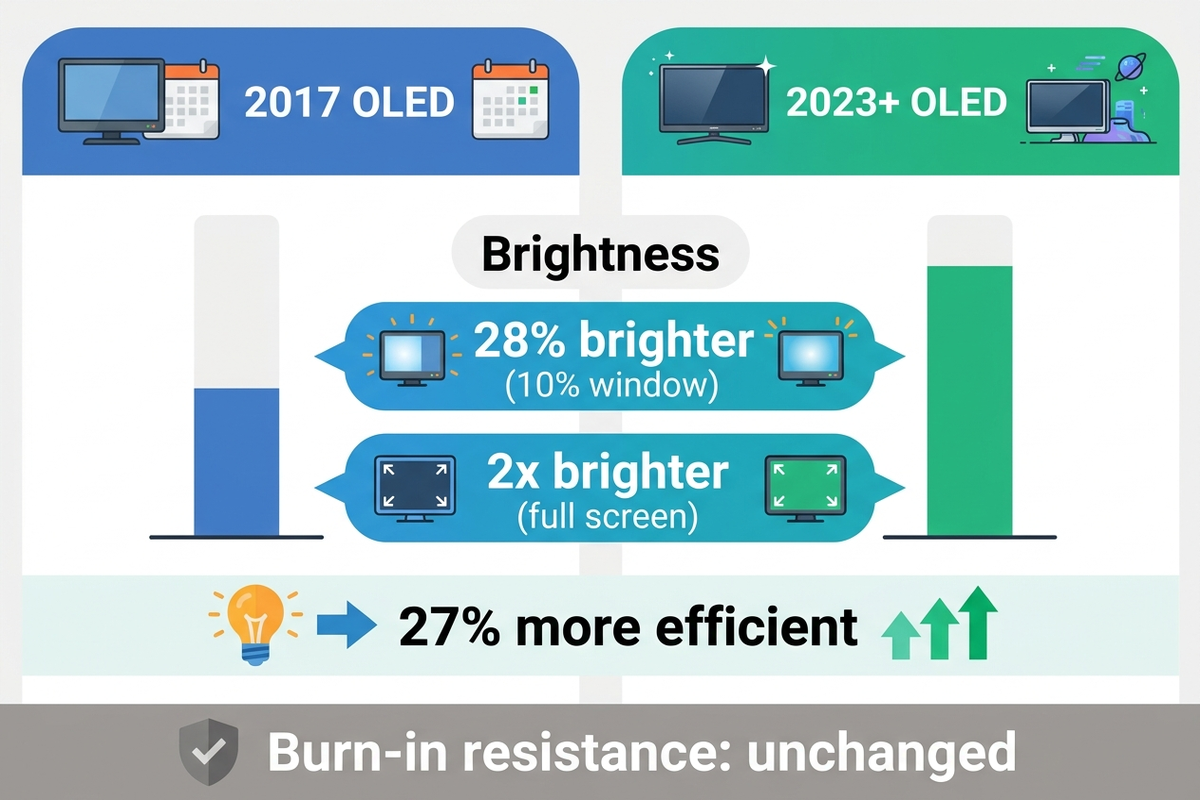
The result surprised a lot of people who assumed brighter, newer panels would simply be more durable. The average 2023 OLED ran 28% brighter than the 2017 panel in a sustained 10%-window brightness test, and more than twice as bright in a full-screen sustained test, while also drawing about 27% less power to do it — the 2017 C7 needed roughly 130W to hit 100 nits, where a 2023 panel needed about 95W. Despite that leap in brightness and efficiency, Tom’s Hardware’s coverage of the data found no statistically significant improvement in burn-in resistance when each panel was tested at its own maximum brightness setting. Newer OLEDs are not inherently more burn-in-resistant; they are simply capable of producing the same picture at a lower brightness setting, which is the actual lever that reduces burn-in risk over time.
The Built-In Features Already Doing Most of the Work
Every current OLED TV from LG, Samsung, and Sony ships with firmware designed specifically to manage this risk, and for the large majority of households these features are sufficient on their own.
Pixel shift periodically nudges the entire displayed image by a few pixels in a pattern too subtle to notice while watching, so no single pixel group sits under a static bright element for the full viewing session.
Logo and static-element dimming (LG calls its version Logo Luminance Adjustment) detects on-screen elements that haven’t moved in a while — a channel bug, a scoreboard, a game HUD — and automatically reduces that specific area’s brightness. LG doesn’t publish an exact percentage or timing threshold for this feature; the user-facing control is simply an Off/Low/High setting in the picture menu.
Automatic pixel refresh is the feature most owners never notice because it runs when the TV is off. LG’s compensation cycle kicks in after about 4 hours of cumulative on-time and runs for 7–10 minutes with the screen dark, evening out pixel wear across the panel. Manufacturer support documentation is specific that this cycle needs to run to completion and will not work properly if the TV is unplugged or cut off at a power strip immediately after you turn it off — the fix is powering down with the remote and leaving it be for those few minutes, not necessarily unplugging it right away.
Idle screen savers activate after a couple of minutes of no input, replacing any static menu or paused frame with a moving pattern so a paused show or a game’s pause screen doesn’t sit on-screen indefinitely.
Prevention Steps That Actually Matter
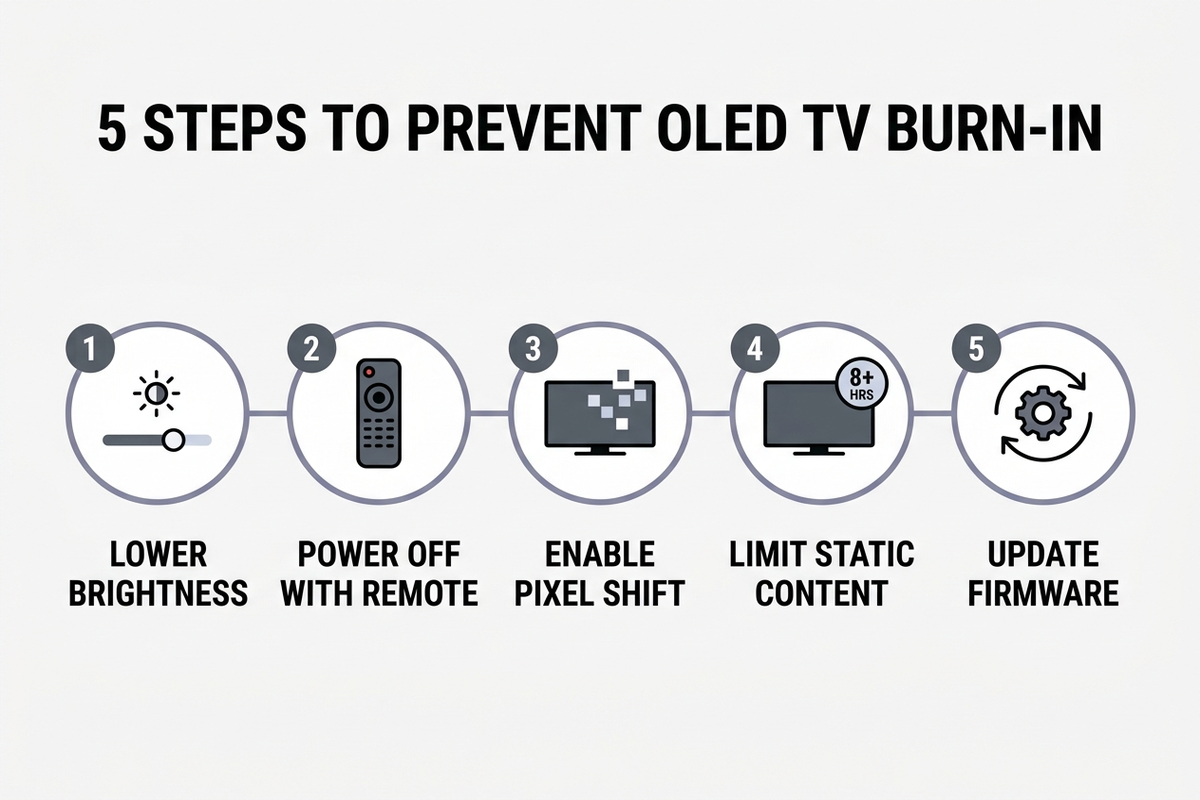
- Turn down the OLED Light / Peak Brightness setting, or enable Eco Mode / ambient light–based auto-brightness. This is the single highest-leverage step: the RTINGS and Tom’s Hardware data both point to sustained high brightness, not simply OLED technology itself, as the main driver of burn-in risk.
- Power the TV off with the remote, not by cutting power at the outlet or a smart plug immediately afterward, so the automatic pixel-refresh cycle can run to completion.
- Make sure pixel shift and logo dimming are switched on. These ship enabled by default on most current models, but it’s worth checking in the picture or general settings menu if you’ve reset the TV or bought it refurbished.
- Avoid parking on one high-static-content channel for most of the day, every day. News channels with a permanent ticker and logo are the realistic high-risk case documented in testing — occasional viewing is not the issue, but 8+ hours daily for years is.
- Rotate what’s on screen if you’re a heavy single-game player. A health bar, minimap, or score overlay that sits in the same spot for hundreds of hours without a break is the gaming equivalent of the news-ticker scenario.
- Keep the TV’s firmware updated. Manufacturers periodically refine pixel-refresh and compensation algorithms, and firmware updates are the only way to receive those improvements on a TV you already own.
Who Actually Needs to Worry
Independent reporting on the current generation of panels converges on the same point: burn-in risk tracks viewing habits far more than it tracks which OLED model you own.
| Usage pattern | Risk level | What to do |
|---|---|---|
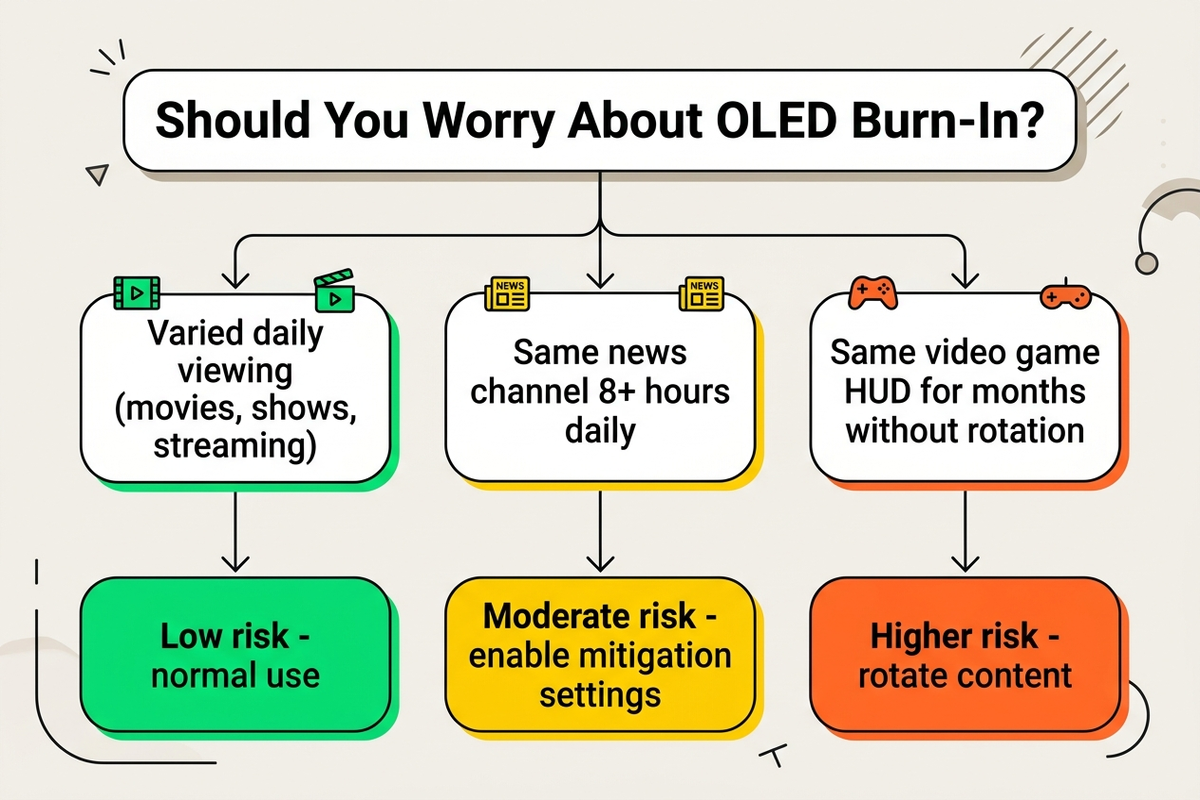
| Mixed streaming, movies, and live TV, a few hours a day | Low | Nothing beyond leaving default mitigation settings on |
| One cable news channel on most of the day, most days, for years | Moderate–High | Lower brightness, confirm logo dimming is on, break up the viewing pattern when possible |
| Same competitive game for 8+ hours daily over months, HUD never changes | Moderate–High | Rotate games periodically, lower in-game HUD opacity if the game allows it |
| TV used as a secondary always-on dashboard or digital signage display | High | Consider a non-OLED panel for this specific use case, or use a screen saver / auto-off schedule aggressively |
Tools That Help Enforce These Habits
Prices as of 2026-10-22. Ratings and review counts are Amazon customer data at time of research, not independently verified by Arekore.
| Product | What it helps with | Price (approx.) | Amazon rating |
|---|---|---|---|
| Kasa Smart Plug by TP-Link, 4-Pack | Scheduling a delayed standby for devices feeding the TV, without cutting the TV’s own power before its pixel-refresh cycle finishes | ~$30 | 4.6 / 5 |
| Roku Streaming Stick 4K | Replacing a static cable-box or game-console home screen with a streaming interface that has its own idle screen saver | ~$50 | 4.6 / 5 |
| Asurion 2-Year Television Protection Plan | Extended coverage for electrical and mechanical failures after the manufacturer warranty ends | ~$140–150 (price tier varies by TV price) | 4.3 / 5 |
A smart plug doesn’t belong on the TV’s own outlet for this purpose — use it on a connected device with a static home screen (a cable box, a game console left on standby) rather than on the TV itself, since cutting the TV’s power right after you turn it off can interrupt the pixel-refresh cycle described above. Protection-plan burn-in coverage is inconsistent in practice; check the specific plan’s terms before assuming it covers cosmetic screen wear, since some Asurion documentation treats burn-in as covered only when tied to a hardware fault like overheating, not routine static-image wear.
Editorial Recommendation by Use Case
- If you watch a healthy mix of content and don’t leave the TV paused for hours: do nothing beyond confirming pixel shift and logo dimming are enabled — this covers the overwhelming majority of households.
- If you’re a heavy daily news-channel viewer: lower your brightness setting a few notches and make a habit of switching inputs or channels periodically during the day.
- If you’re a competitive gamer who plays one title for months: check whether the game offers a lower-opacity HUD option, and take breaks that let pixel shift and refresh cycles do their job.
- If you’re buying an OLED specifically for an always-on dashboard, signage, or monitor-replacement use case: this is the one scenario where the independent testing data supports real concern — consider whether a non-OLED panel better fits that specific job.
Warranty Considerations
Burn-in and image retention are explicitly excluded from LG’s and Sony’s standard OLED TV warranties in most cases. LG has extended burn-in coverage on select premium models and regions in recent years, and Samsung has advertised similar coverage on some of its QD-OLED models, but both are model- and market-dependent rather than a blanket policy — check the specific model’s warranty documentation rather than assuming coverage based on the brand alone. Because burn-in is treated as usage-related rather than a manufacturing defect in most standard warranties, the prevention habits above are also the most direct way to avoid a coverage dispute later.
Limitations
This analysis relies on RTINGS’ published multi-year longevity testing, Tom’s Hardware’s reporting on that data, LG and Samsung manufacturer documentation, and current US OLED market-share estimates, rather than a burn-in test Arekore ran itself. Burn-in susceptibility varies by panel generation, specific model, and even individual unit, and manufacturers continue to refine mitigation firmware between model years, so a newly released model may behave somewhat differently than the panels in the cited tests. Market-research estimates (market.us) put OLED’s share of the US smart TV market at roughly 30% as of early 2026, with shipments growing faster than the overall smart TV market — a scale note on how many households this question applies to, not a claim about any individual model’s burn-in resistance. Real-world usage patterns vary widely, and the risk tiers above are directional guidance, not guarantees for any specific household’s viewing habits.
As an Amazon Associate, Arekore earns from qualifying purchases. The Amazon product links in this article include our affiliate tracking ID and may earn us a commission if you buy through them, at no additional cost to you. See our Links Policy for details on how we select products and how commissions do not influence our recommendations.
Related Products on Amazon
- Kasa Smart Plug by TP-Link, Smart Wi-Fi Outlet, Works with Alexa & Google Home, 4-Pack
- Roku Streaming Stick 4K Streaming Device with Voice Remote and TV Controls
- ASURION 2 Year Television Protection Plan ($140–$149.99)
If you already own an OLED TV, start with the free option: open the picture settings menu, confirm pixel shift and logo dimming are on, and turn the brightness down a few notches. That single change does more for long-term burn-in risk than any accessory on this list.